> ## Documentation Index
> Fetch the complete documentation index at: https://docs.bookmarkjar.com/llms.txt
> Use this file to discover all available pages before exploring further.
# Export Bookmarks
> Download all your bookmarks in JSON, HTML, or CSV format
## Overview
Export all your bookmarks to take your data anywhere. Perfect for backups, migrations, or analyzing your bookmarks in spreadsheets.
**Supported formats**: JSON (complete data), HTML (browser-compatible), and CSV (spreadsheet-friendly)
## Export Formats
## How to Export
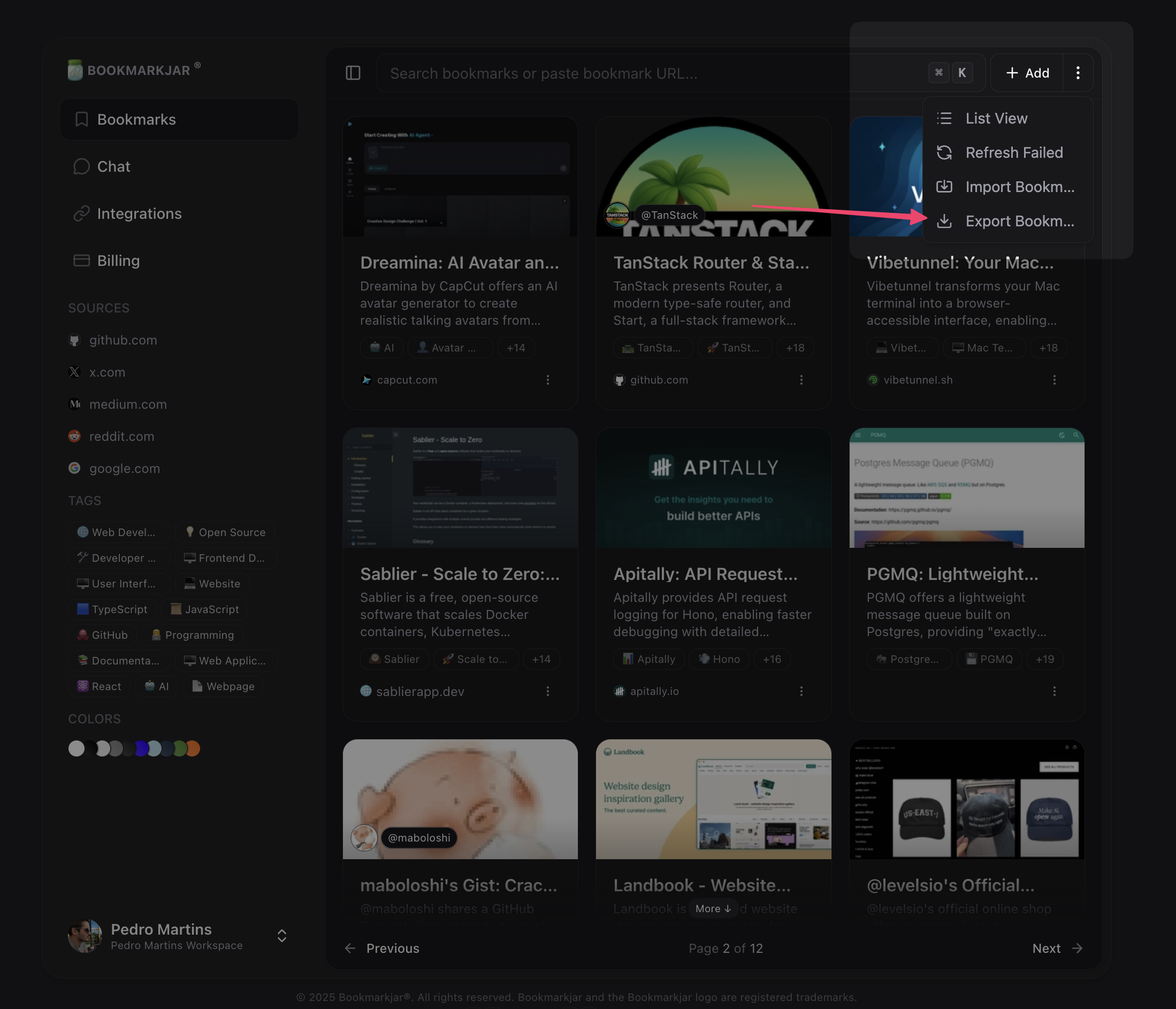
1. Navigate to **Dashboard → Bookmarks**
2. Click the **Export** button in the toolbar
3. Select your preferred format (JSON, HTML, or CSV)
4. Click **Export**
 ### JSON Format
Complete export with all bookmark data including AI analysis, tags, notes, and metadata.
**Includes**:
* URL, title, description
* Tags and notes
* AI summaries and analysis
* Images and metadata
* Creation dates
**Best for**: Complete backups, data portability, programmatic access
### HTML Format
Netscape Bookmark File Format — compatible with all major browsers.
**Includes**:
* URL, title, creation date
* Tags (in description)
* AI summaries (in description)
**Best for**: Importing into Chrome, Firefox, Safari, Edge, or other bookmark managers
**Browser import**:
* **Chrome**: Bookmarks → Bookmark Manager → ⋮ → Import bookmarks
* **Firefox**: Bookmarks → Show All Bookmarks → Import and Backup → Import Bookmarks from HTML
* **Safari**: File → Import From → Bookmarks HTML File
* **Edge**: Favorites → ⋮ → Import favorites
### CSV Format
Spreadsheet-compatible format for analysis in Excel, Google Sheets, or databases.
**Columns**:
* `title` — Bookmark title
* `url` — Bookmark URL
* `description` — Bookmark description
* `tags` — Semicolon-separated tags
* `notes` — Your personal notes
* `created_at` — ISO 8601 timestamp
* `aiResult` — JSON string with AI analysis
**Best for**: Data analysis, filtering, custom processing
You'll receive an email with a download link when your export is ready (usually within a few minutes).
## Export Process
Choose your format and click Export. The process starts immediately in the background.
Your bookmarks are gathered, formatted, and compressed into a ZIP file. This may take a few minutes for large collections.
You'll receive an email with a secure download link when the export is complete.
Click the link in your email to download your bookmarks. The link expires after 3 days.
## Export Limits
**Rate limit**: One export at a time per organization
* ✅ No limit on number of bookmarks
* ✅ No file size restrictions
* ✅ Download link valid for 3 days
* ⚠️ Only one export can be in progress at a time
If you request a new export while one is processing, you'll see an error. Wait for the current export to complete first.
## File Format Details
### JSON Structure
```json theme={null}
{
"bookmarks": [
{
"title": "GitHub",
"url": "https://github.com",
"description": "Where the world builds software",
"tags": ["development", "code"],
"notes": "My favorite platform",
"createdAt": "2024-01-15T10:30:00.000Z",
"aiResult": {
"summary": "GitHub is a platform for...",
"keywords": ["git", "collaboration"]
}
}
],
"exportedAt": "2024-11-24T12:00:00.000Z",
"totalBookmarks": 1
}
```
### HTML Structure
Standard Netscape Bookmark File Format:
```html theme={null}
Bookmarks
### JSON Format
Complete export with all bookmark data including AI analysis, tags, notes, and metadata.
**Includes**:
* URL, title, description
* Tags and notes
* AI summaries and analysis
* Images and metadata
* Creation dates
**Best for**: Complete backups, data portability, programmatic access
### HTML Format
Netscape Bookmark File Format — compatible with all major browsers.
**Includes**:
* URL, title, creation date
* Tags (in description)
* AI summaries (in description)
**Best for**: Importing into Chrome, Firefox, Safari, Edge, or other bookmark managers
**Browser import**:
* **Chrome**: Bookmarks → Bookmark Manager → ⋮ → Import bookmarks
* **Firefox**: Bookmarks → Show All Bookmarks → Import and Backup → Import Bookmarks from HTML
* **Safari**: File → Import From → Bookmarks HTML File
* **Edge**: Favorites → ⋮ → Import favorites
### CSV Format
Spreadsheet-compatible format for analysis in Excel, Google Sheets, or databases.
**Columns**:
* `title` — Bookmark title
* `url` — Bookmark URL
* `description` — Bookmark description
* `tags` — Semicolon-separated tags
* `notes` — Your personal notes
* `created_at` — ISO 8601 timestamp
* `aiResult` — JSON string with AI analysis
**Best for**: Data analysis, filtering, custom processing
You'll receive an email with a download link when your export is ready (usually within a few minutes).
## Export Process
Choose your format and click Export. The process starts immediately in the background.
Your bookmarks are gathered, formatted, and compressed into a ZIP file. This may take a few minutes for large collections.
You'll receive an email with a secure download link when the export is complete.
Click the link in your email to download your bookmarks. The link expires after 3 days.
## Export Limits
**Rate limit**: One export at a time per organization
* ✅ No limit on number of bookmarks
* ✅ No file size restrictions
* ✅ Download link valid for 3 days
* ⚠️ Only one export can be in progress at a time
If you request a new export while one is processing, you'll see an error. Wait for the current export to complete first.
## File Format Details
### JSON Structure
```json theme={null}
{
"bookmarks": [
{
"title": "GitHub",
"url": "https://github.com",
"description": "Where the world builds software",
"tags": ["development", "code"],
"notes": "My favorite platform",
"createdAt": "2024-01-15T10:30:00.000Z",
"aiResult": {
"summary": "GitHub is a platform for...",
"keywords": ["git", "collaboration"]
}
}
],
"exportedAt": "2024-11-24T12:00:00.000Z",
"totalBookmarks": 1
}
```
### HTML Structure
Standard Netscape Bookmark File Format:
```html theme={null}
Bookmarks
Bookmarks
- GitHub
- Tags: development, code
- AI Summary: GitHub is a platform for...
```
### CSV Structure
```csv theme={null}
title,url,description,tags,notes,created_at,aiResult
GitHub,https://github.com,Where the world builds software,development;code,My favorite platform,2024-01-15T10:30:00.000Z,"{""summary"":""GitHub is a platform for...""}"
```
## Security & Privacy
All exports are secure:
* ✅ Encrypted storage (S3)
* ✅ Signed URLs with 3-day expiration
* ✅ Only accessible by authenticated users
* ✅ Automatic cleanup of expired exports
* ✅ Files are compressed (ZIP format)
## Best Practices
**Regular backups**: Export your bookmarks monthly to keep an offline backup of your data.
### For Backups
* Use **JSON format** for complete data preservation
* Store exports in a secure location (encrypted drive, cloud storage)
* Keep multiple versions (monthly snapshots)
### For Migration
* Use **HTML format** to import into other bookmark managers
* Use **CSV format** for custom database imports
* Test with a small subset first
### For Analysis
* Use **CSV format** for spreadsheet analysis
* Import into Excel, Google Sheets, or databases
* Filter by tags, dates, or domains
## Troubleshooting
Large collections (10,000+ bookmarks) may take 5-10 minutes to process. You'll receive an email when it's ready.
The export runs in the background, so you can continue using the app.
* Check your spam/junk folder
* Verify your email address in account settings
* Wait at least 10 minutes before requesting a new export
* Contact support if still not received
Links expire after 3 days for security. Request a new export to get a fresh download link.
Only one export can be in progress at a time. Wait for your current export to complete (check your email) or contact support to cancel it.
* Ensure you've fully downloaded the ZIP file
* Extract the ZIP file first (don't open directly)
* For CSV: Open with Excel, Google Sheets, or a text editor
* For HTML: Open with any web browser or import into browser bookmarks
* For JSON: Open with a text editor or JSON viewer
## After Exporting
Once you've downloaded your export:
1. **Verify** — Open the file to ensure all bookmarks are included
2. **Backup** — Store in a secure location
3. **Import** — Use HTML format to import into other browsers/tools
4. **Analyze** — Use CSV format for custom analysis
## Need Help?
Having trouble with exports? Check out:
* Troubleshooting Guide
* Contact Support
* Join our Discord