> ## Documentation Index
> Fetch the complete documentation index at: https://docs.bookmarkjar.com/llms.txt
> Use this file to discover all available pages before exploring further.
# Import Bookmarks
> Bulk import your bookmarks from CSV or HTML files
## Overview
Import hundreds or thousands of bookmarks at once from CSV or HTML files. Perfect for migrating from other bookmark managers or importing browser bookmarks.
**Supported formats**: CSV (`.csv`) and HTML (`.html`, `.htm`) files exported from Chrome, Firefox, Safari, or other bookmark managers.
## How to Import
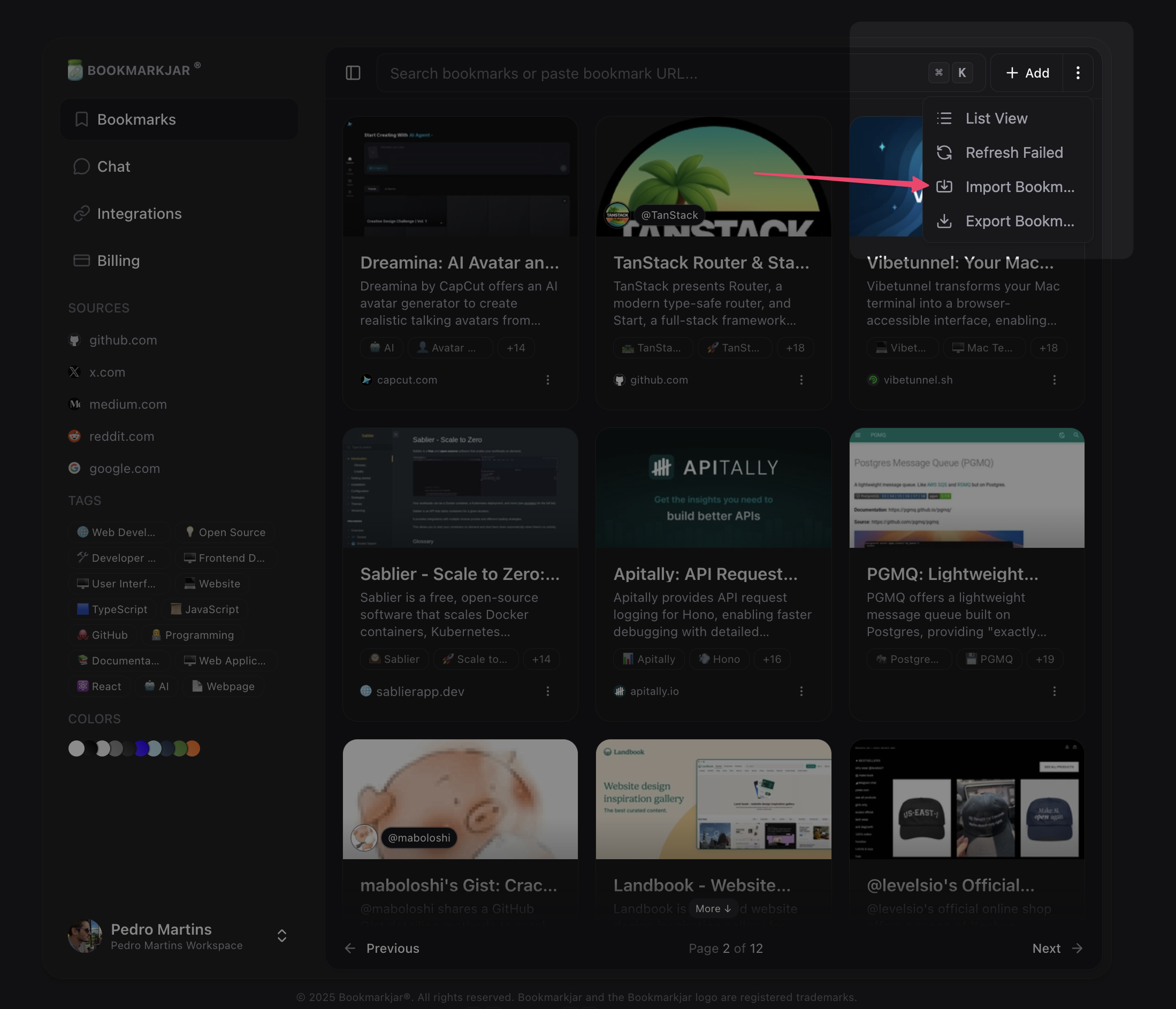
1. Navigate to **Dashboard → Bookmarks**
2. Click the **Import** button in the toolbar
3. Select your file format (CSV or HTML)
4. Choose your file
5. Click **Import**
 **Imports run in the background** — You can continue using the app while your bookmarks are being imported. You'll receive a notification when the import completes.
## Supported Formats
### HTML Files
Import bookmarks exported from browsers like Chrome, Firefox, Safari, Edge, or other bookmark managers.
* **Chrome**: Bookmarks → Bookmark Manager → ⋮ → Export bookmarks
* **Firefox**: Bookmarks → Show All Bookmarks → Import and Backup → Export Bookmarks to HTML
* **Safari**: File → Export Bookmarks
* **Edge**: Favorites → ⋮ → Export favorites
### CSV Files
Import from spreadsheets or custom exports. Your CSV must include a column for URLs.
**Required columns** (case-insensitive):
* `url`, `link`, or `href` — The bookmark URL (required)
* `title` or `name` — The bookmark title (optional)
**Example CSV format**:
```csv theme={null}
url,title
https://github.com,GitHub
https://stackoverflow.com,Stack Overflow
https://developer.mozilla.org,MDN Web Docs
```
## Import Limits
**Maximum bookmarks per import**: 10,000 bookmarks per file
For HTML files, parsing stops after 50,000 links to prevent performance issues. If you have larger files, split them into smaller batches.
**Plan limits apply** — If your file contains more bookmarks than your available slots, only the first bookmarks up to your limit will be imported. For example, if you have 100 slots available and import a file with 5,000 bookmarks, only the first 100 will be added.
## What Gets Imported
✅ **Imported**:
* URL (validated and sanitized)
* Title (if available)
* Automatic metadata extraction (description, images, etc.)
❌ **Not imported**:
* Folders/organization (bookmarks are imported flat)
* Tags (add them after import)
* Favicons (fetched automatically)
* Custom notes (add them after import)
## Security & Validation
All imports are validated for security:
* ✅ Only `http://` and `https://` URLs accepted
* ✅ URLs sanitized to prevent injection attacks
* ✅ Maximum URL length: 2,048 characters
* ✅ Duplicate URLs are automatically skipped
* ✅ Invalid URLs are filtered out
## Best Practices
**Clean your data first**: Remove broken links and duplicates before importing for faster processing.
### For CSV Files
* Use UTF-8 encoding to support international characters
* Include headers in the first row
* Quote fields that contain commas
* Keep file size under 10MB for best performance
### For HTML Files
* Export directly from your browser for best compatibility
* Avoid manually editing HTML files (can cause parsing errors)
* Remove unnecessary metadata before exporting
## Troubleshooting
**For CSV**: Ensure your file has a column named `url`, `link`, or `href` (case-insensitive).
**For HTML**: Verify the file is a valid HTML bookmark export, not a regular webpage.
Bookmarks are skipped if:
* The URL is invalid or malformed
* The URL exceeds 2,048 characters
* The URL uses an unsupported protocol (not http/https)
* The bookmark already exists in your account
Large imports (1,000+ bookmarks) may take several minutes. The process runs in the background, so you can continue using the app.
For very large imports, consider splitting into smaller batches of 1,000-2,000 bookmarks.
* Check file size is under 10MB
* Verify file format is `.csv`, `.html`, or `.htm`
* Try exporting the file again from your source
* Contact support if the issue persists
## After Importing
Once your bookmarks are imported:
1. **Review** — Check the import summary for any skipped items
2. **Organize** — Add tags to categorize your bookmarks
3. **Search** — Use AI-powered search to find what you need
4. **Clean up** — Remove any unwanted bookmarks
Imported bookmarks are automatically indexed for search and will appear in your AI chat context.
## Need Help?
Having trouble with imports? Check out:
* Troubleshooting Guide
* Contact Support
* Join our Discord
**Imports run in the background** — You can continue using the app while your bookmarks are being imported. You'll receive a notification when the import completes.
## Supported Formats
### HTML Files
Import bookmarks exported from browsers like Chrome, Firefox, Safari, Edge, or other bookmark managers.
* **Chrome**: Bookmarks → Bookmark Manager → ⋮ → Export bookmarks
* **Firefox**: Bookmarks → Show All Bookmarks → Import and Backup → Export Bookmarks to HTML
* **Safari**: File → Export Bookmarks
* **Edge**: Favorites → ⋮ → Export favorites
### CSV Files
Import from spreadsheets or custom exports. Your CSV must include a column for URLs.
**Required columns** (case-insensitive):
* `url`, `link`, or `href` — The bookmark URL (required)
* `title` or `name` — The bookmark title (optional)
**Example CSV format**:
```csv theme={null}
url,title
https://github.com,GitHub
https://stackoverflow.com,Stack Overflow
https://developer.mozilla.org,MDN Web Docs
```
## Import Limits
**Maximum bookmarks per import**: 10,000 bookmarks per file
For HTML files, parsing stops after 50,000 links to prevent performance issues. If you have larger files, split them into smaller batches.
**Plan limits apply** — If your file contains more bookmarks than your available slots, only the first bookmarks up to your limit will be imported. For example, if you have 100 slots available and import a file with 5,000 bookmarks, only the first 100 will be added.
## What Gets Imported
✅ **Imported**:
* URL (validated and sanitized)
* Title (if available)
* Automatic metadata extraction (description, images, etc.)
❌ **Not imported**:
* Folders/organization (bookmarks are imported flat)
* Tags (add them after import)
* Favicons (fetched automatically)
* Custom notes (add them after import)
## Security & Validation
All imports are validated for security:
* ✅ Only `http://` and `https://` URLs accepted
* ✅ URLs sanitized to prevent injection attacks
* ✅ Maximum URL length: 2,048 characters
* ✅ Duplicate URLs are automatically skipped
* ✅ Invalid URLs are filtered out
## Best Practices
**Clean your data first**: Remove broken links and duplicates before importing for faster processing.
### For CSV Files
* Use UTF-8 encoding to support international characters
* Include headers in the first row
* Quote fields that contain commas
* Keep file size under 10MB for best performance
### For HTML Files
* Export directly from your browser for best compatibility
* Avoid manually editing HTML files (can cause parsing errors)
* Remove unnecessary metadata before exporting
## Troubleshooting
**For CSV**: Ensure your file has a column named `url`, `link`, or `href` (case-insensitive).
**For HTML**: Verify the file is a valid HTML bookmark export, not a regular webpage.
Bookmarks are skipped if:
* The URL is invalid or malformed
* The URL exceeds 2,048 characters
* The URL uses an unsupported protocol (not http/https)
* The bookmark already exists in your account
Large imports (1,000+ bookmarks) may take several minutes. The process runs in the background, so you can continue using the app.
For very large imports, consider splitting into smaller batches of 1,000-2,000 bookmarks.
* Check file size is under 10MB
* Verify file format is `.csv`, `.html`, or `.htm`
* Try exporting the file again from your source
* Contact support if the issue persists
## After Importing
Once your bookmarks are imported:
1. **Review** — Check the import summary for any skipped items
2. **Organize** — Add tags to categorize your bookmarks
3. **Search** — Use AI-powered search to find what you need
4. **Clean up** — Remove any unwanted bookmarks
Imported bookmarks are automatically indexed for search and will appear in your AI chat context.
## Need Help?
Having trouble with imports? Check out:
* Troubleshooting Guide
* Contact Support
* Join our Discord