> ## Documentation Index
> Fetch the complete documentation index at: https://docs.bookmarkjar.com/llms.txt
> Use this file to discover all available pages before exploring further.
# Quickstart
> Get started with Bookmarkjar ® in 60 seconds
## Get started in three steps
Create your Bookmarkjar ® account at Sign Up.
We recommend using **Google** or **Discord** for a fast, smooth sign‑up experience.
### Step 1: Add your first bookmark
Once you’re logged in, visit the Dashboard.
Copy any link and paste it with ⌘ + V or Ctrl + V to add it to Bookmarkjar ®.
You can also use keyboard shortcuts to add bookmarks: ⌘ + I or Ctrl + I.
That’s it! You've added your first bookmark.
### Step 2: Install Browser Extension
The browser extension lets you sync your current browser bookmarks, select text to save, quickly add bookmarks to Bookmarkjar ®, and sync your X (Twitter) bookmarks.
Install the extension directly from the Chrome Web Store with one click:
Install Chrome Extension
**Chrome:** Install from Chrome Web Store - one click install!
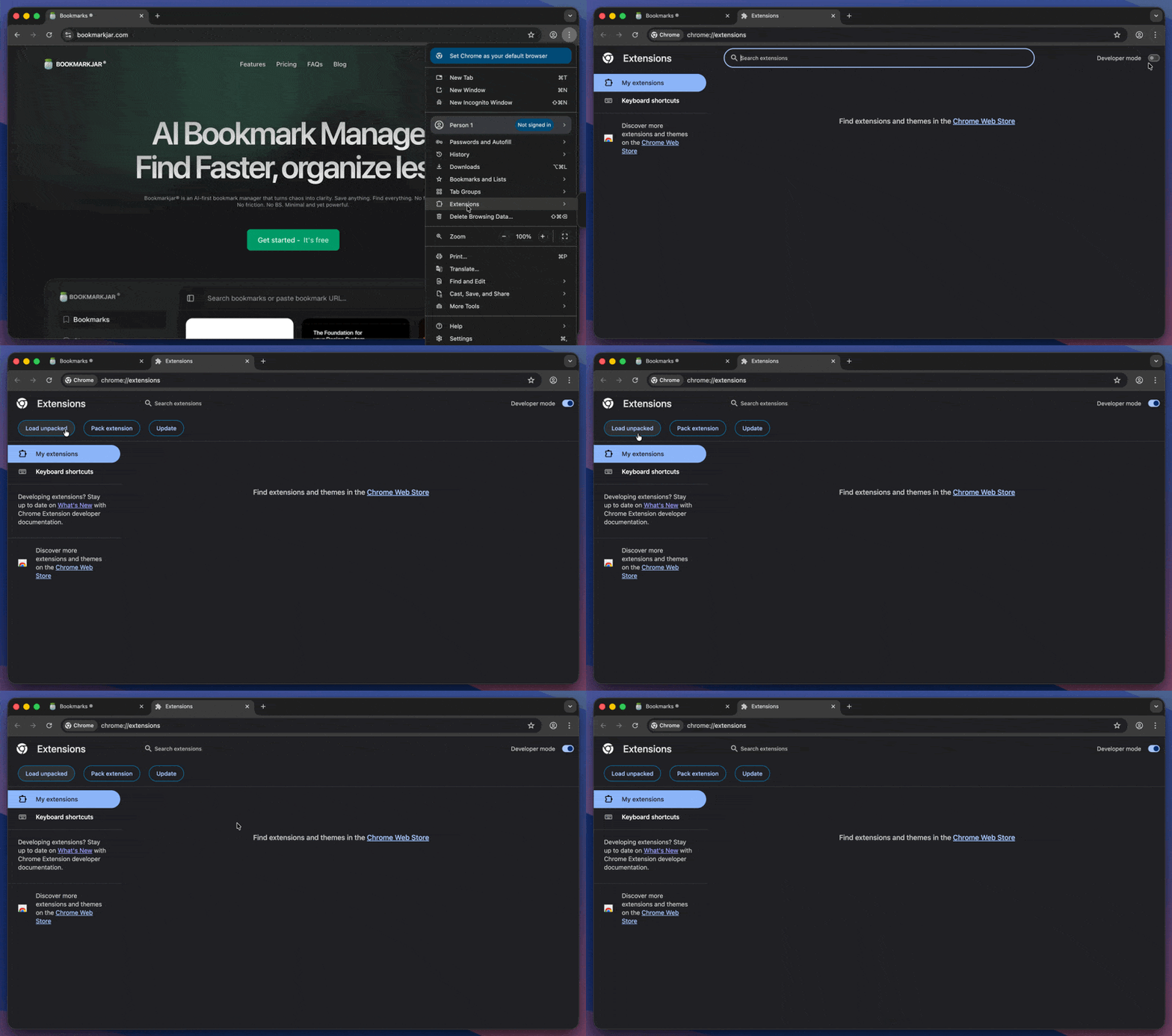
**Firefox:** Download the Firefox extension and follow the manual installation:
* Go to `about:debugging#/runtime/this-firefox`, click "Load temporary add-on...", and select the unzipped folder.
Quick guide:
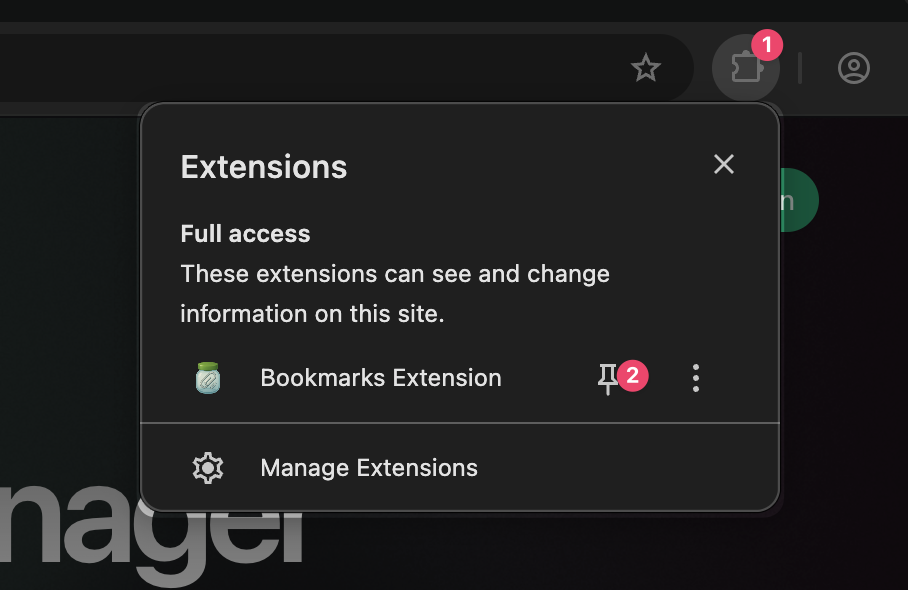
 Once you are done you can pin it to your toolbar or access it from the extensions menu.
 ### Step 3: Yay! You’re ready to get started!
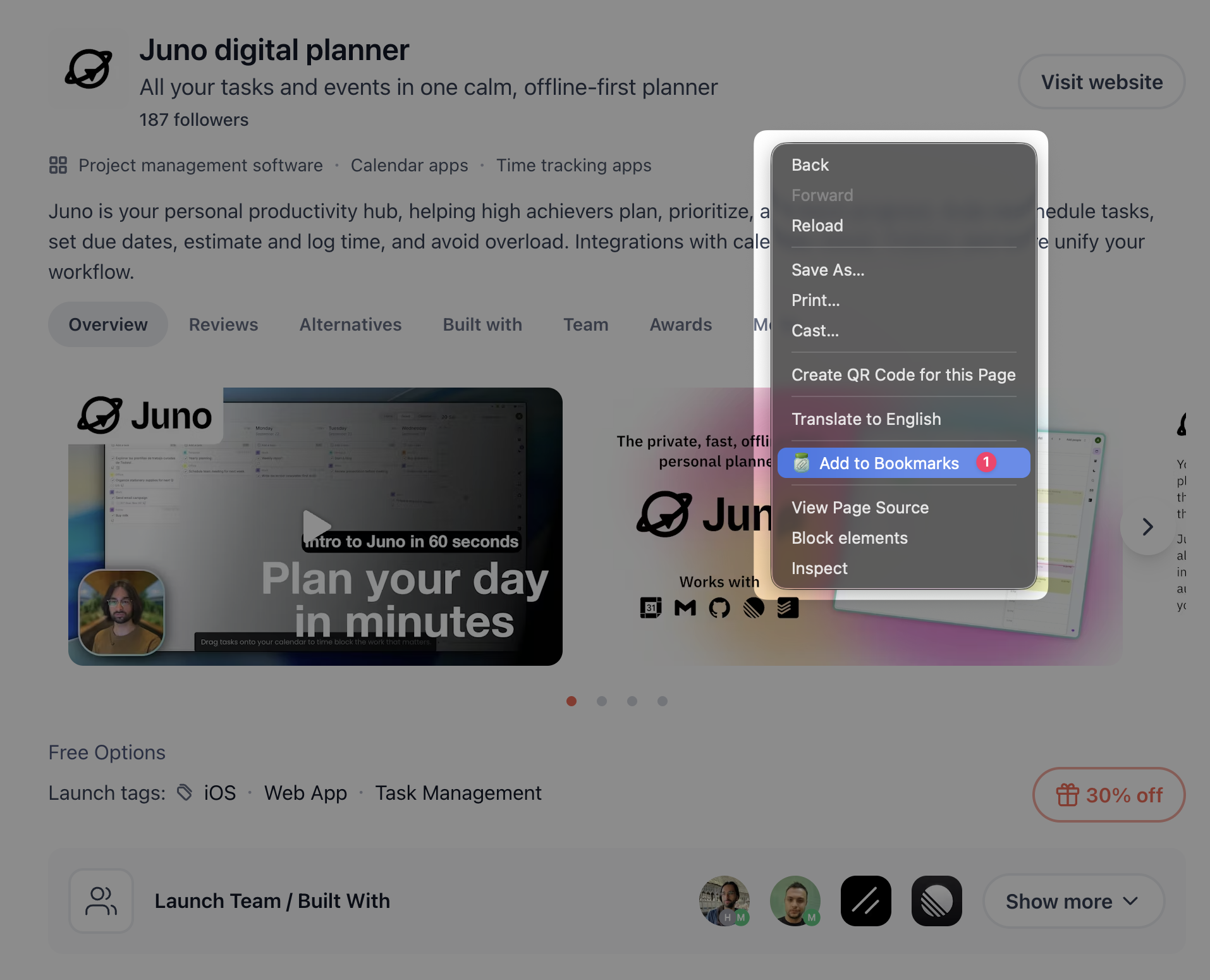
Your browser extension is now ready to use! You can select text or bookmark a page with a single click.
Once you are done, you can now select any text or bookmark a page with a single click.
### Step 3: Yay! You’re ready to get started!
Your browser extension is now ready to use! You can select text or bookmark a page with a single click.
Once you are done, you can now select any text or bookmark a page with a single click.
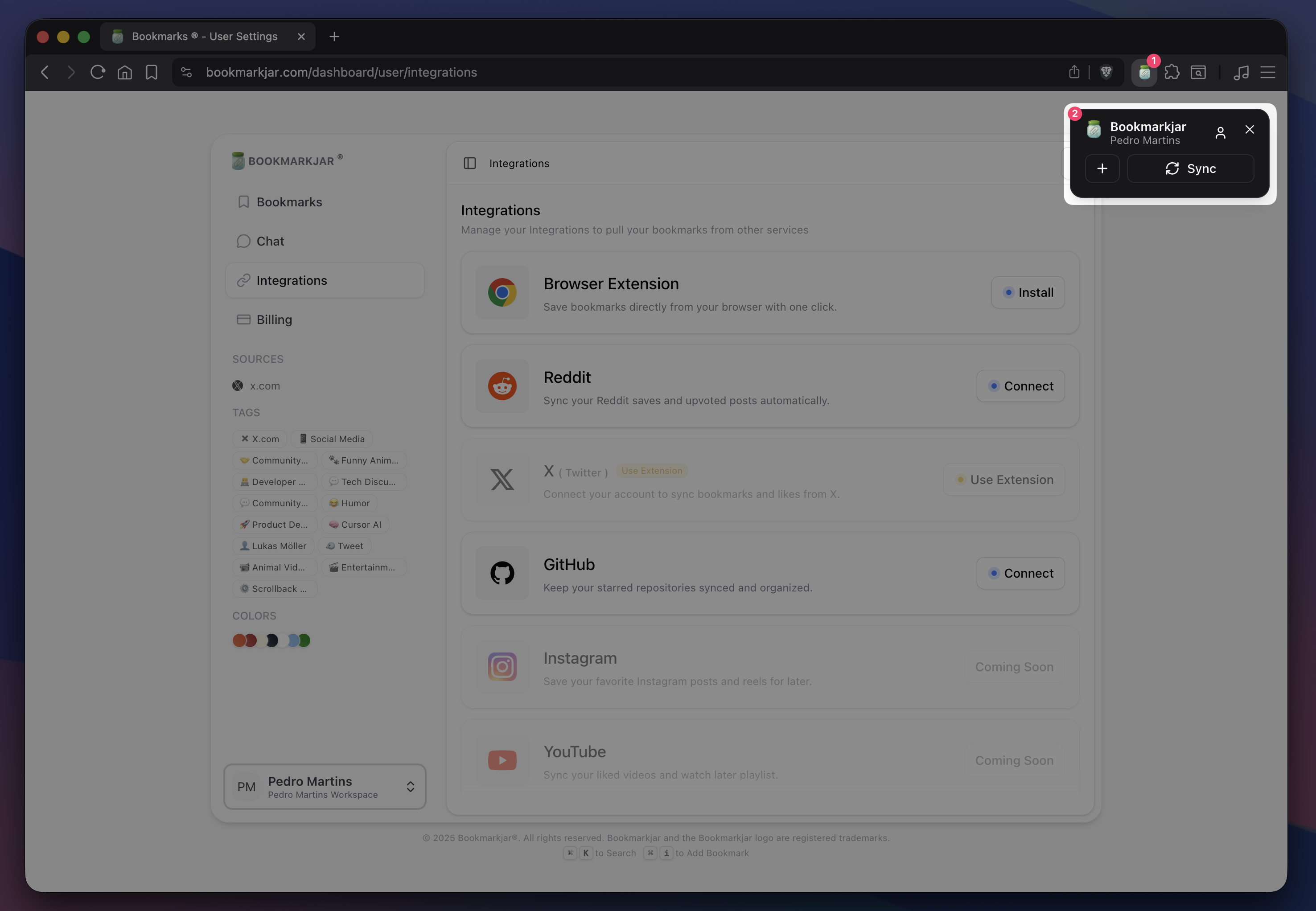
 You may also click the extension icon to sync or add a new bookmark.
 ## Next steps
Now that you’ve completed the first steps, learn more about how to use Bookmarkjar ®. Let’s explore the following topics:
Learn how to use our AI chat to find bookmarks or follow-up on a saved bookmark.
Need to find something? Learn how to get better results with our search engine.
Connect X, Reddit, GitHub, Instagram, YouTube and more to your Bookmarkjar ®.
API Documentation and how to use it in your own applications.
**Need help?** Contact us at [hi@bookmarkjar.com](mailto:hi@bookmarkjar.com) or join our [Discord](https://discord.gg/PW8zg3xUEN).
## Next steps
Now that you’ve completed the first steps, learn more about how to use Bookmarkjar ®. Let’s explore the following topics:
Learn how to use our AI chat to find bookmarks or follow-up on a saved bookmark.
Need to find something? Learn how to get better results with our search engine.
Connect X, Reddit, GitHub, Instagram, YouTube and more to your Bookmarkjar ®.
API Documentation and how to use it in your own applications.
**Need help?** Contact us at [hi@bookmarkjar.com](mailto:hi@bookmarkjar.com) or join our [Discord](https://discord.gg/PW8zg3xUEN).