

Overview
Export all your bookmarks to take your data anywhere. Perfect for backups, migrations, or analyzing your bookmarks in spreadsheets.Supported formats: JSON (complete data), HTML (browser-compatible), and CSV (spreadsheet-friendly)
Export Formats
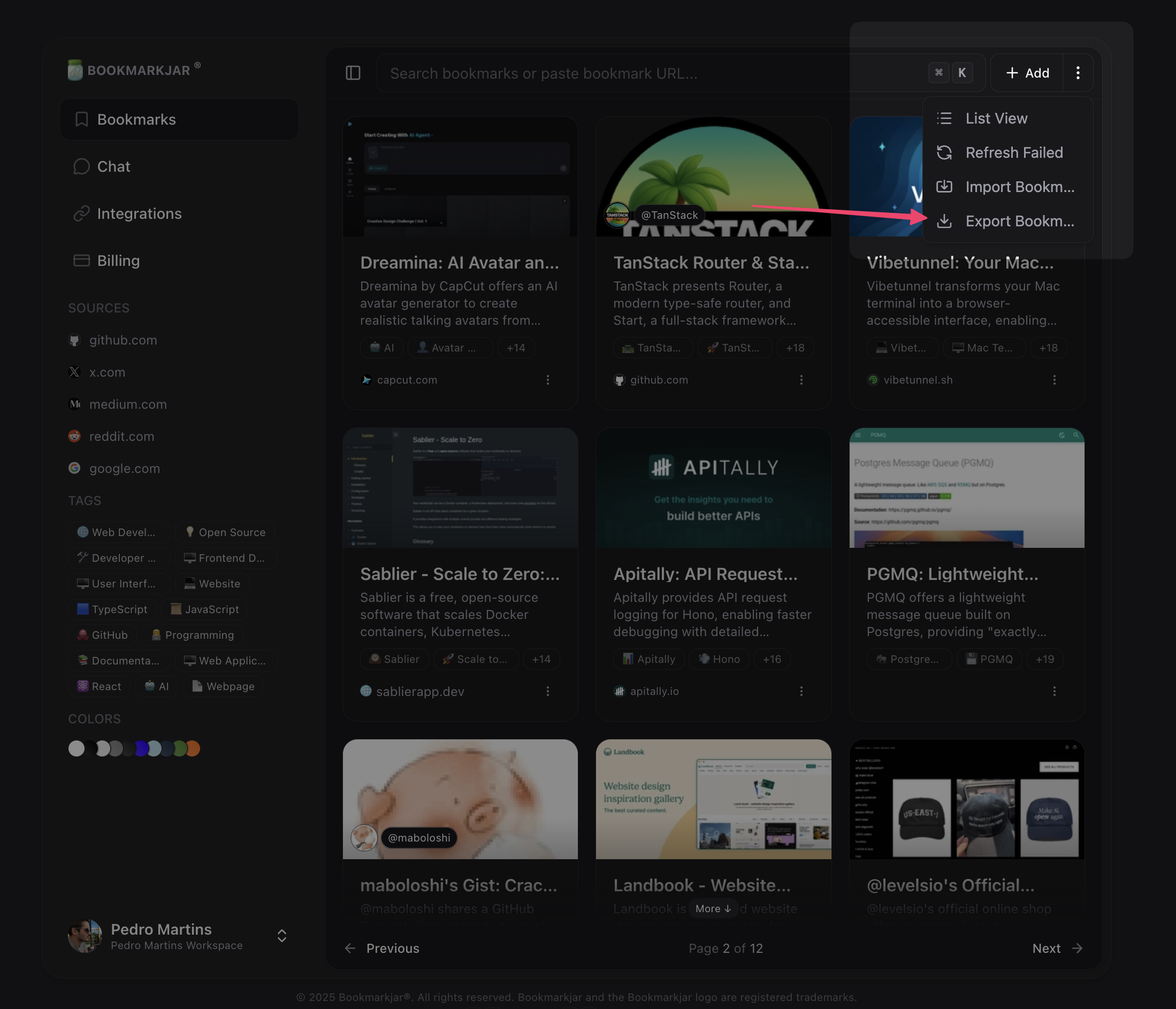
How to Export
- Navigate to Dashboard → Bookmarks
- Click the Export button in the toolbar
- Select your preferred format (JSON, HTML, or CSV)
- Click Export
JSON Format
Complete export with all bookmark data including AI analysis, tags, notes, and metadata. Includes:- URL, title, description
- Tags and notes
- AI summaries and analysis
- Images and metadata
- Creation dates
HTML Format
Netscape Bookmark File Format — compatible with all major browsers. Includes:- URL, title, creation date
- Tags (in description)
- AI summaries (in description)
- Chrome: Bookmarks → Bookmark Manager → ⋮ → Import bookmarks
- Firefox: Bookmarks → Show All Bookmarks → Import and Backup → Import Bookmarks from HTML
- Safari: File → Import From → Bookmarks HTML File
- Edge: Favorites → ⋮ → Import favorites
CSV Format
Spreadsheet-compatible format for analysis in Excel, Google Sheets, or databases. Columns:title— Bookmark titleurl— Bookmark URLdescription— Bookmark descriptiontags— Semicolon-separated tagsnotes— Your personal notescreated_at— ISO 8601 timestampaiResult— JSON string with AI analysis
Export Process
1
Request Export
Choose your format and click Export. The process starts immediately in the background.
2
Processing
Your bookmarks are gathered, formatted, and compressed into a ZIP file. This may take a few minutes for large collections.
3
Email Notification
You’ll receive an email with a secure download link when the export is complete.
4
Download
Click the link in your email to download your bookmarks. The link expires after 3 days.
Export Limits
Rate limit: One export at a time per organization
- ✅ No limit on number of bookmarks
- ✅ No file size restrictions
- ✅ Download link valid for 3 days
- ⚠️ Only one export can be in progress at a time
File Format Details
JSON Structure
HTML Structure
Standard Netscape Bookmark File Format:CSV Structure
Security & Privacy
All exports are secure:- ✅ Encrypted storage (S3)
- ✅ Signed URLs with 3-day expiration
- ✅ Only accessible by authenticated users
- ✅ Automatic cleanup of expired exports
- ✅ Files are compressed (ZIP format)
Best Practices
For Backups
- Use JSON format for complete data preservation
- Store exports in a secure location (encrypted drive, cloud storage)
- Keep multiple versions (monthly snapshots)
For Migration
- Use HTML format to import into other bookmark managers
- Use CSV format for custom database imports
- Test with a small subset first
For Analysis
- Use CSV format for spreadsheet analysis
- Import into Excel, Google Sheets, or databases
- Filter by tags, dates, or domains
Troubleshooting
Export is taking a long time
Export is taking a long time
Large collections (10,000+ bookmarks) may take 5-10 minutes to process. You’ll receive an email when it’s ready.The export runs in the background, so you can continue using the app.
Didn't receive export email
Didn't receive export email
- Check your spam/junk folder
- Verify your email address in account settings
- Wait at least 10 minutes before requesting a new export
- Contact support if still not received
Download link expired
Download link expired
Links expire after 3 days for security. Request a new export to get a fresh download link.
Can't request new export
Can't request new export
Only one export can be in progress at a time. Wait for your current export to complete (check your email) or contact support to cancel it.
File won't open
File won't open
- Ensure you’ve fully downloaded the ZIP file
- Extract the ZIP file first (don’t open directly)
- For CSV: Open with Excel, Google Sheets, or a text editor
- For HTML: Open with any web browser or import into browser bookmarks
- For JSON: Open with a text editor or JSON viewer
After Exporting
Once you’ve downloaded your export:- Verify — Open the file to ensure all bookmarks are included
- Backup — Store in a secure location
- Import — Use HTML format to import into other browsers/tools
- Analyze — Use CSV format for custom analysis