

Overview
Import hundreds or thousands of bookmarks at once from CSV or HTML files. Perfect for migrating from other bookmark managers or importing browser bookmarks.Supported formats: CSV (
.csv) and HTML (.html, .htm) files exported from Chrome, Firefox, Safari, or other bookmark managers.How to Import
- Navigate to Dashboard → Bookmarks
- Click the Import button in the toolbar
- Select your file format (CSV or HTML)
- Choose your file
- Click Import
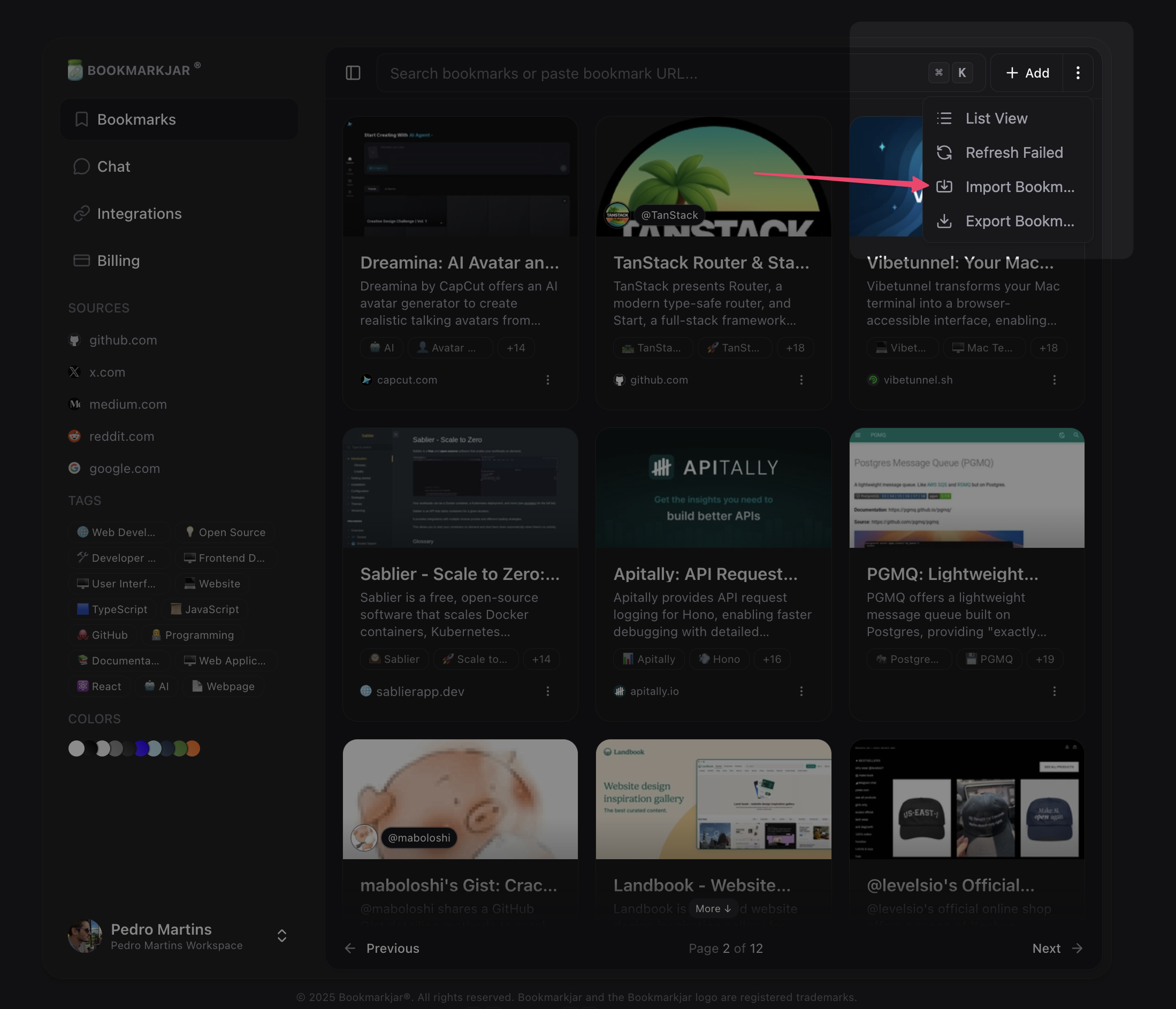
Imports run in the background — You can continue using the app while your bookmarks are being imported. You’ll receive a notification when the import completes.
Supported Formats
HTML Files
Import bookmarks exported from browsers like Chrome, Firefox, Safari, Edge, or other bookmark managers.- Chrome: Bookmarks → Bookmark Manager → ⋮ → Export bookmarks
- Firefox: Bookmarks → Show All Bookmarks → Import and Backup → Export Bookmarks to HTML
- Safari: File → Export Bookmarks
- Edge: Favorites → ⋮ → Export favorites
CSV Files
Import from spreadsheets or custom exports. Your CSV must include a column for URLs. Required columns (case-insensitive):url,link, orhref— The bookmark URL (required)titleorname— The bookmark title (optional)
Import Limits
For HTML files, parsing stops after 50,000 links to prevent performance issues. If you have larger files, split them into smaller batches.Plan limits apply — If your file contains more bookmarks than your available slots, only the first bookmarks up to your limit will be imported. For example, if you have 100 slots available and import a file with 5,000 bookmarks, only the first 100 will be added.
What Gets Imported
✅ Imported:- URL (validated and sanitized)
- Title (if available)
- Automatic metadata extraction (description, images, etc.)
- Folders/organization (bookmarks are imported flat)
- Tags (add them after import)
- Favicons (fetched automatically)
- Custom notes (add them after import)
Security & Validation
All imports are validated for security:- ✅ Only
http://andhttps://URLs accepted - ✅ URLs sanitized to prevent injection attacks
- ✅ Maximum URL length: 2,048 characters
- ✅ Duplicate URLs are automatically skipped
- ✅ Invalid URLs are filtered out
Best Practices
For CSV Files
- Use UTF-8 encoding to support international characters
- Include headers in the first row
- Quote fields that contain commas
- Keep file size under 10MB for best performance
For HTML Files
- Export directly from your browser for best compatibility
- Avoid manually editing HTML files (can cause parsing errors)
- Remove unnecessary metadata before exporting
Troubleshooting
Import shows 0 bookmarks found
Import shows 0 bookmarks found
For CSV: Ensure your file has a column named
url, link, or href (case-insensitive).For HTML: Verify the file is a valid HTML bookmark export, not a regular webpage.Some bookmarks were skipped
Some bookmarks were skipped
Bookmarks are skipped if:
- The URL is invalid or malformed
- The URL exceeds 2,048 characters
- The URL uses an unsupported protocol (not http/https)
- The bookmark already exists in your account
Import is taking a long time
Import is taking a long time
Large imports (1,000+ bookmarks) may take several minutes. The process runs in the background, so you can continue using the app.For very large imports, consider splitting into smaller batches of 1,000-2,000 bookmarks.
File upload fails
File upload fails
- Check file size is under 10MB
- Verify file format is
.csv,.html, or.htm - Try exporting the file again from your source
- Contact support if the issue persists
After Importing
Once your bookmarks are imported:- Review — Check the import summary for any skipped items
- Organize — Add tags to categorize your bookmarks
- Search — Use AI-powered search to find what you need
- Clean up — Remove any unwanted bookmarks
Imported bookmarks are automatically indexed for search and will appear in your AI chat context.